1. Can I use special characters when entering my business information?
Yes. The following special characters are supported:
- Brand Name, Business Name, Address & Brand Description: & . , ‘ ” / ( ) – ! @
- Brand Social Media: & ? . / \ ( ) @ # % ! = – _
2. Why can’t I submit my business address?
Please ensure your address is entered on a single line. Avoid pressing Enter or adding line breaks, as this may prevent your application from being submitted.
3. What do the “Onboarding” statuses mean? What does “Probation” indicate?
- Onboarding: Your application is still in progress and has not yet been fully submitted. Please ensure all required documents are uploaded and the Terms & Conditions have been accepted before submitting.
- Probation: Your application has been successfully submitted and is currently under review by our Onboarding team.
4. How can I upgrade my package from Starter to Advance?
For detailed upgrade instructions, refer to our Starter to Advance Plan Upgrade Guide.
1. I didn’t receive the invitation email to access the new DOKU account. What should I do?
Please check your Spam or Junk folder for the invitation email. If you’re still unable to locate it, please contact our Customer Support team at [email protected] or via WhatsApp: 017-8244534.
2. How do I activate my new DOKU account?
Open the invitation email and click “Accept Invitation”, then follow the on-screen instructions to complete your account activation.
3. Do I need to enter an OTP every time I log in?
Yes, this is required for security purposes. However, you may disable two-factor authentication (2FA) in your user profile by turning off the “2-step verification” option to smoothen the subsequent login steps.
*Please note that disabling this feature is not advisable due to security reasons.
4. I’m unable to log in to my DOKU account. What should I do?
If you’re experiencing login issues, please contact our Customer Support team at [email protected] or via WhatsApp: 017-8244534 to request a new invitation email.
If the issue persists after the invitation has been resent, please try resetting your password.
1. How can I change the dashboard language to English?
You can change the dashboard language by clicking the three-dot menu (⋮) located at the bottom-left corner of the dashboard, then selecting your preferred language.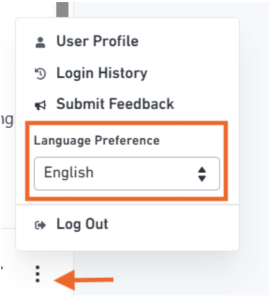
2. Can I display my business email address on the Payment Link instead of my login email?
Yes. You can update your business email by navigating to:
Settings → Business Info → Change
Note: The update is subject to our approval.
2. Can I change the email address I use to log in to my DOKU account?
The login email address cannot be changed.
However, you can manage access to your account by adding or removing team members via:
Settings → Team Management
For step-by-step instructions, please refer to this guide.
3. I have submitted my business information update and uploaded the required documents. Why haven’t my changes been reflected yet?
Any changes to your business information require a re-verification process before they can be applied.
The verification is typically completed within 1 working day. Once approved, your updated information will be reflected in your account.
1. How do I process a refund?
To request a refund, please email the senangPay-DOKU Finance team at [email protected] with the following details: Invoice Number, Transaction Amount, Transaction Date and Customer’s Email Address
2. Which payment methods support refunds?
Refunds are available for Card transactions only. Other payment method: FPX, e-wallet, BNPL and Instalment Payment Plan (IPP) transactions are currently not eligible for refunds.
3. Are there any refund processing fees?
No. We do not charge any refund processing fees. Only the original Merchant Discount Rate (MDR) applies to the transaction.
4. How will the refund appear in my account?
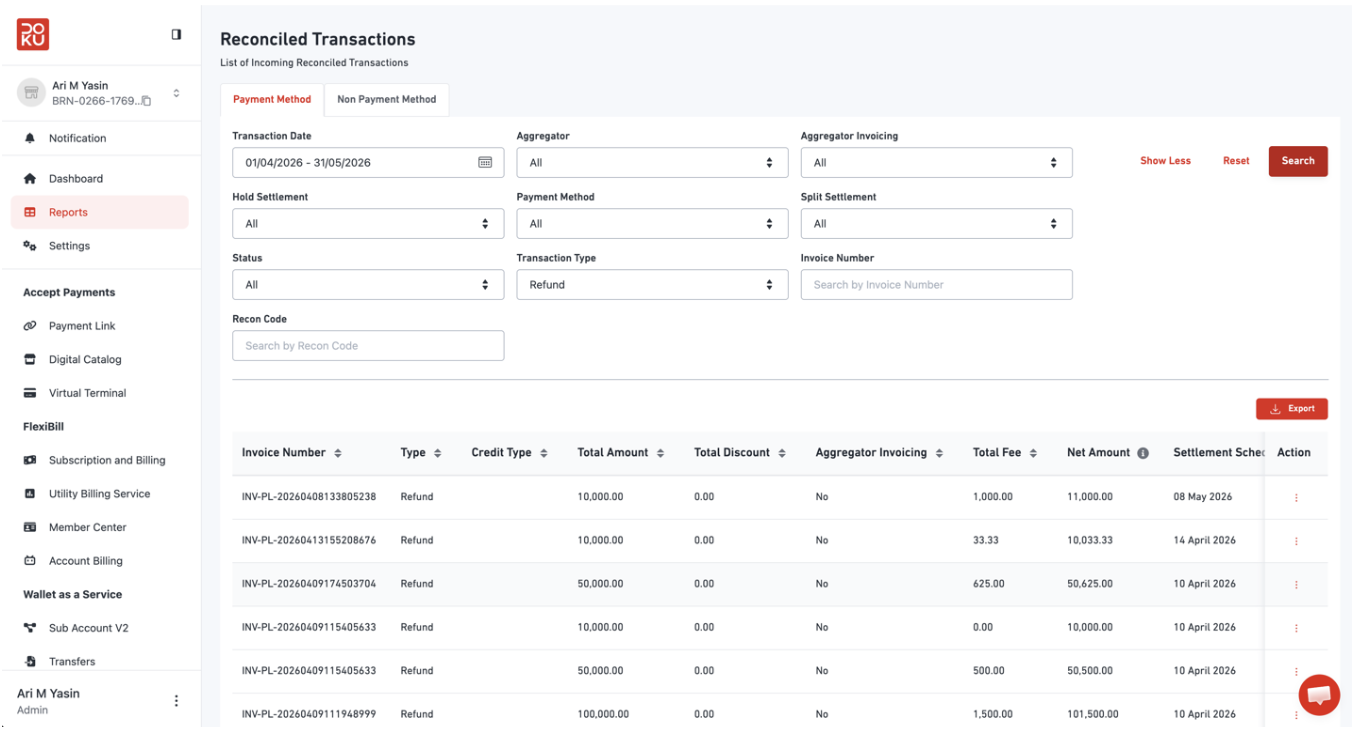
After a refund has been processed, you can verify its status in the Reconciled Transaction report.
To view refund transactions:
Navigate to Reports → Reconciled Transaction.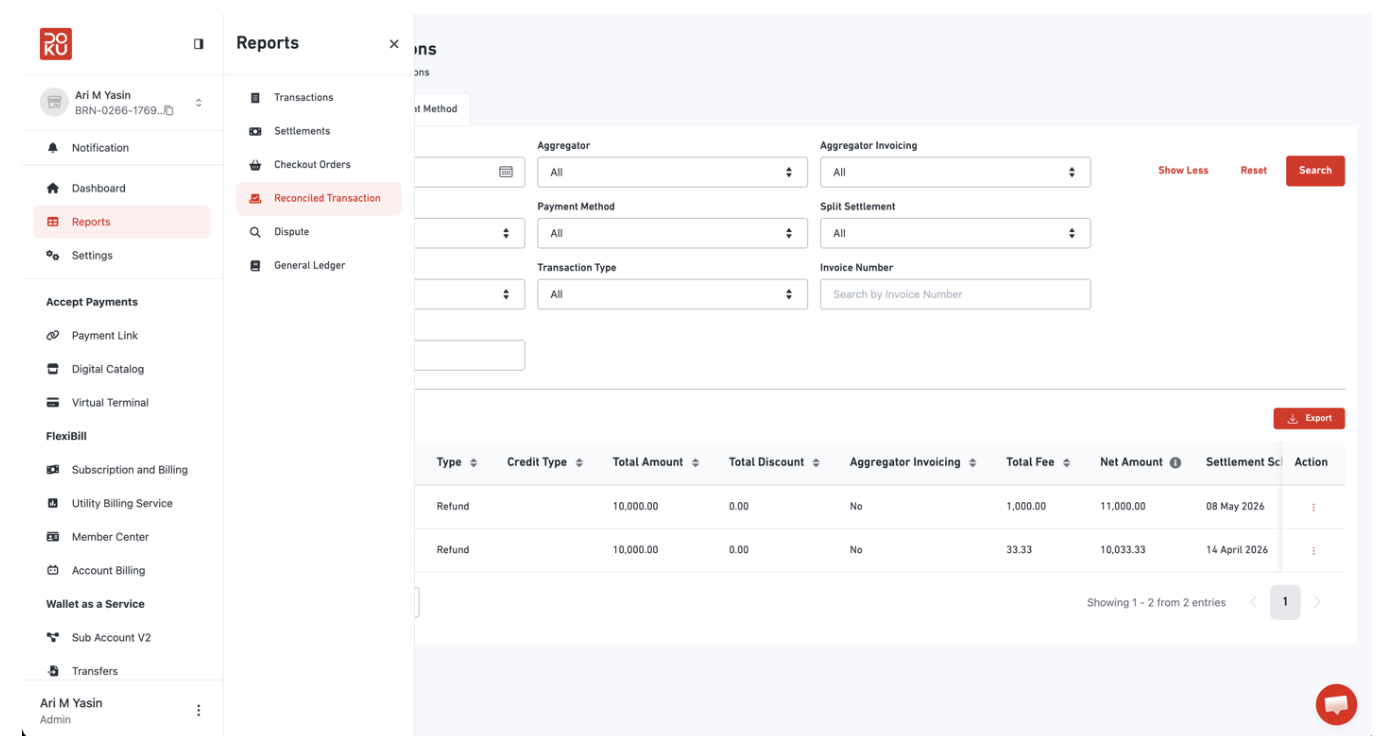
Set the Transaction Type filter to Refund.
The processed refund transaction will be displayed in the report.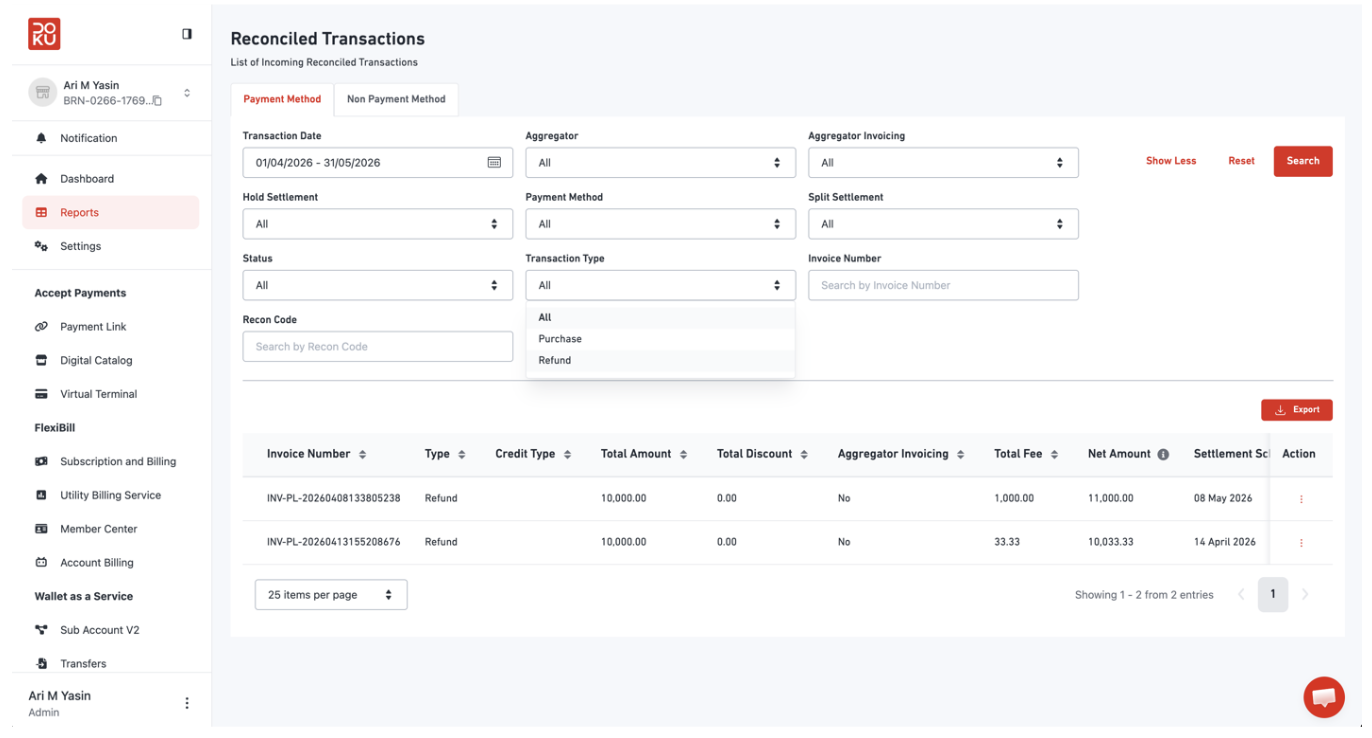
1. I can’t find the customer’s contact number under “Reports > Transactions” in the DOKU dashboard. What should I do?
You can view the customer’s contact details by clicking the relevant Invoice Number, as shown below: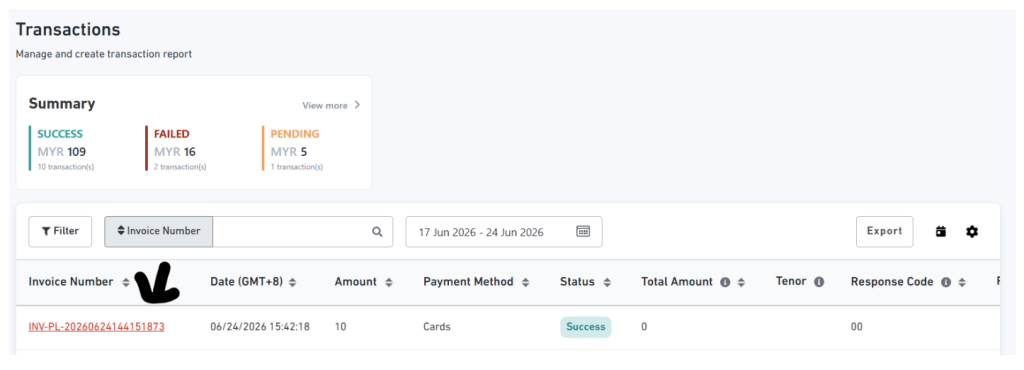
Alternatively, navigate to Reports > Checkout Orders > Actions.
2. I need historical settlement reports from senangPay legacy system. How can I obtain them?
Please contact our Customer Support (CS) team at [email protected] or via WhatsApp: 017-8244534 to request the report.
3. How can I generate a transaction fee report? I can’t find it under “Reports > Transactions”.
You can generate the transaction fee report by following these steps:
Reports → Settlement → Select the desired date range → Click the three-dot menu (⋮) → Transaction List → Export
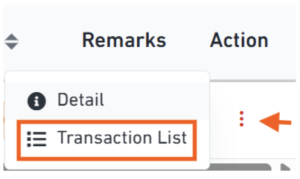
OR
Report > Reconciled Transaction > Export
4. How can I customise the transaction report to include the details I need?
On the Reports > Transactions page, click the Settings icon to select the fields you would like to include in the report.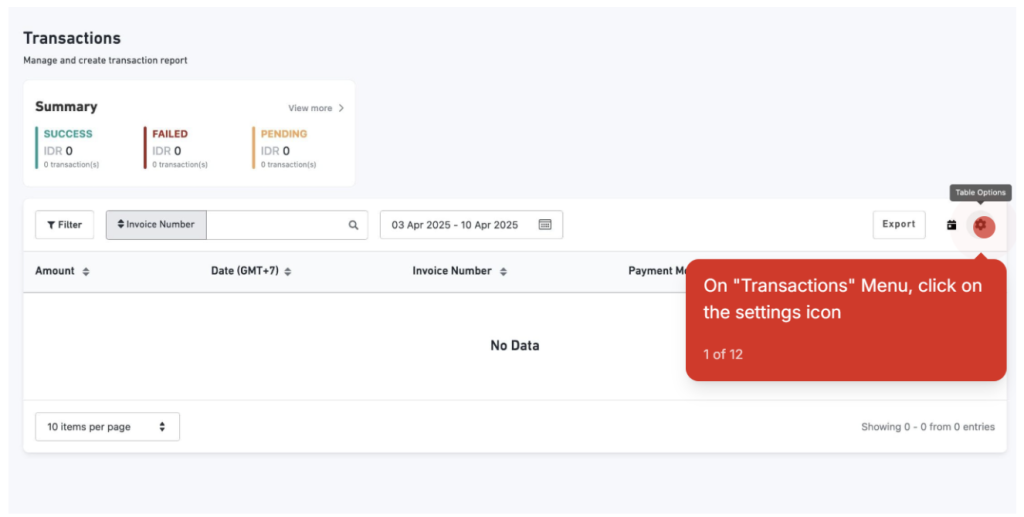
Click the + icon, select the fields you want to include, then click Apply. Once the desired fields are displayed, click Export to download the report.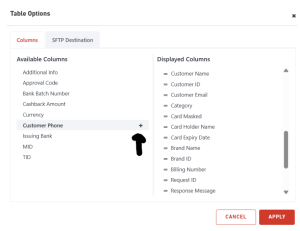
5. Where can I view my previous transactions?
You can view your transaction history by navigating to Reports > Transactions.
Note: If your account has just been migrated, there may be a slight delay before historical transactions appear in the new portal.
Please note that transaction history is available for up to one year. If you require records older than one year, please contact our Customer Support team for assistance.
6. Can I filter transactions by a specific date to view the total amount for that day?
Yes. Simply click the Date field and select your preferred date or date range. The transaction list and total amount will automatically update based on your selected filter.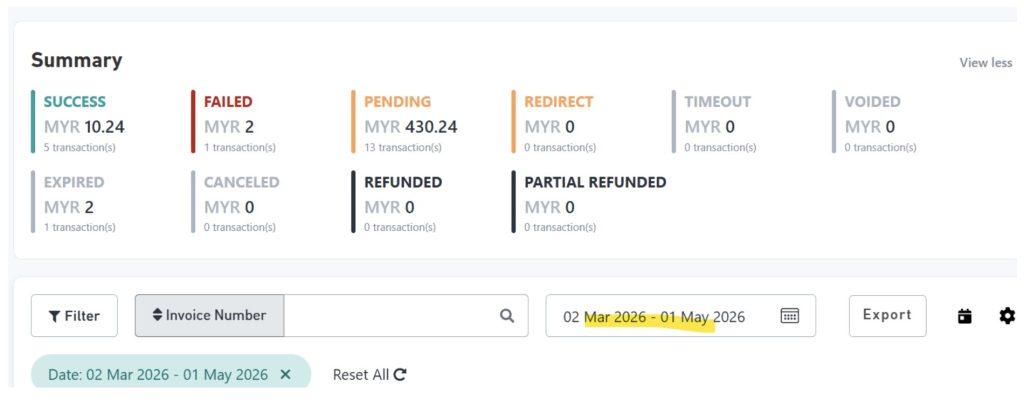
1. I can’t see the Instalment Payment Plan (IPP) option at checkout. What should I do?
Unlike the senangPay legacy checkout, where IPP was displayed as a separate payment option, the new senangPay–DOKU checkout integrates IPP under the Card Payment option to provide a simpler and more streamlined checkout experience, as sample shown below: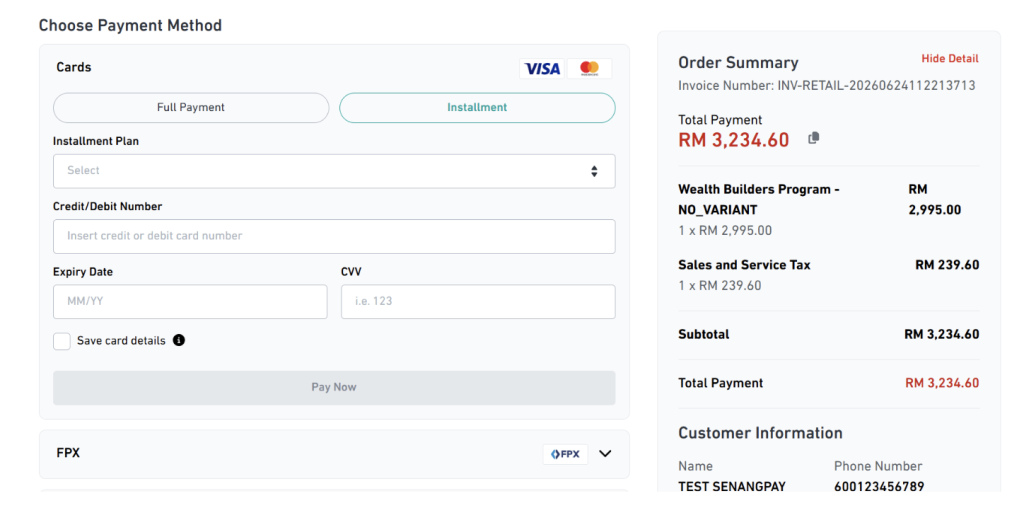
Note: IPP is subject to the minimum transaction amount required by the participating bank. The IPP option will only appear under Card Payment when the transaction amount meets the bank’s minimum eligibility requirement.
For more information, please visit the relevant guide.
2. I can’t see certain payment options (e.g. SPayLater, Grab PayLater, or IPP) at checkout. What should I do?
If these payment methods were previously activated under the senangPay legacy system but are not available on the new senangPay–DOKU platform, please contact our Customer Support team at [email protected] or via WhatsApp: 017-8244534 to request for activation.
Please note that activation is subject to eligibility requirements and may incur applicable activation fees and/or additional charges, depending on the selected payment method.
3. My customer is experiencing issues when paying with ShopeePayLater. What should I do?
This issue may be caused by the transaction limit set for ShopeePayLater. Please contact our Customer Support team for further assessment and assistance.
4. The payment status shows “Expired” in DOKU, but the customer’s payment has been deducted. What should I do?
Please contact our Customer Support team for assistance and further investigation. If the payment is successfully received on our end, we will ensure your customers are not charged twice and will update the transaction status accordingly.
5. The payment status shows “Cancelled” or “Failed” on my website, but “Successful” in the DOKU dashboard. What should I do?
Please contact our Customer Support team for assistance and further investigation. If the payment is confirmed to have been successfully received, we will update the transaction status accordingly and ensure your customers are not charged twice.
6. Does the new platform support foreign card payments?
Yes. To enable foreign card payments, you may either contact our Customer Support team for assistance or submit a request directly through your DOKU dashboard by following these steps:
Settings → Cards → Payment Configuration → Country & BIN Filtering → Edit → Select the country(s) → Request Verification
Note: Your request is subject to review and approval.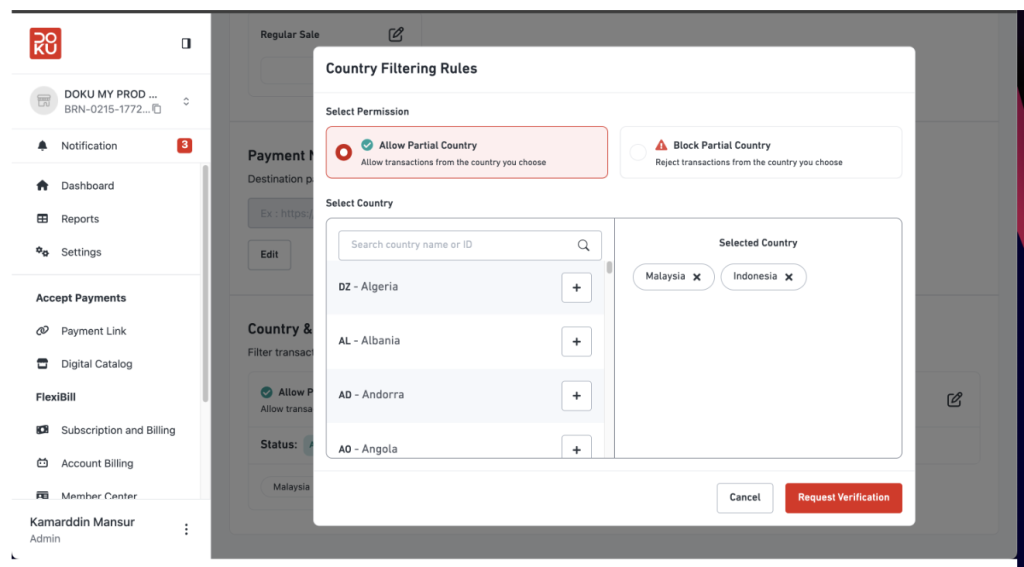
7. How can I disable a payment method in the DOKU dashboard?
You can disable a payment method by following these steps:
Settings → Checkout Appearance → Payment Method Settings → Disable or remove the payment method(s) you no longer wish to offer.
8. Is the Tokenization feature available in DOKU?
The Tokenization feature is not available at the moment. It will be introduced in a future release.
9. Will I receive email notifications for successful transactions in DOKU?
Not at the moment. Email notifications for successful transactions will be available in a future release.
10. Why was my customer’s card payment declined?
A card payment may be declined for various reasons, such as the cardholder reaching their daily card spending limit, having insufficient funds or available credit, entering incorrect card details, or the transaction being declined by the issuing bank due to its security or risk checks.
If the decline is due to the daily card spending limit, the transaction is automatically blocked as a security measure to help protect both your business from fraudulent chargebacks and the cardholder from unauthorised transactions.
To complete the purchase, you may advise your customer to:
- Try the payment again the next day, once the daily card limit has reset; Or
- Use a different payment method if the purchase is urgent.
If you require further assistance or would like us to investigate the declined transaction, please contact our Customer Support team.
Note: If the decline is due to the daily card limit, this restriction is enforced automatically by the security system and cannot be overridden for that transaction.
11. What is the minimum payment amount that can be processed?
The minimum payment amount is RM2.00.
1. Can I create promo codes or discounts in DOKU, similar to the legacy senangPay Payment Link?
Yes. You can create and manage promotional discounts by navigating to the Promo section in your DOKU dashboard. For step-by-step instructions, please refer to this guide.
2. I noticed that payment links in the DOKU dashboard expire after one year. Can the expiry date be removed?
Currently, the maximum validity period for a payment link is one year. Extending or removing the expiry limit is not supported at the moment but is planned for a future release.
3. Is there a quotation feature available, similar to senangPay?
This feature is currently not available at the moment.
4. Can I include delivery charges when creating a payment link?
Delivery charges are not supported for either Single or Multiple Payment Links. To include delivery charges in your customers’ orders, please use Digital Catalog, where this feature is available.
5. How many custom payment links can I create?
You can create up to 10 custom payment links per account each month.
6. I have migrated from senangPay to DOKU. Will my existing senangPay payment links still work?
Yes. Your existing senangPay payment links will continue to work. When a customer clicks on an existing senangPay payment link, they will be automatically redirected to the DOKU checkout page.
1. Will I receive a settlement invoice like I did in the senangPay legacy system?
This feature is not available at the moment but is planned for a future release.
While the settlement invoice is not yet available in the dashboard, you can still track the settlement status of each transaction by navigating to Reports > Reconciled Transactions.
Each transaction will display one of the following statuses:
- In Progress – The settlement is currently being processed.
- Settled – The settlement has been successfully completed.
2. How can I obtain my e-Invoices?
The e-Invoice and tax invoice features will be available in a future release.
In the meantime, if you require an e-Invoice or tax invoice, please contact our Customer Support team for assistance at [email protected] or via WhatsApp: 017-8244534.
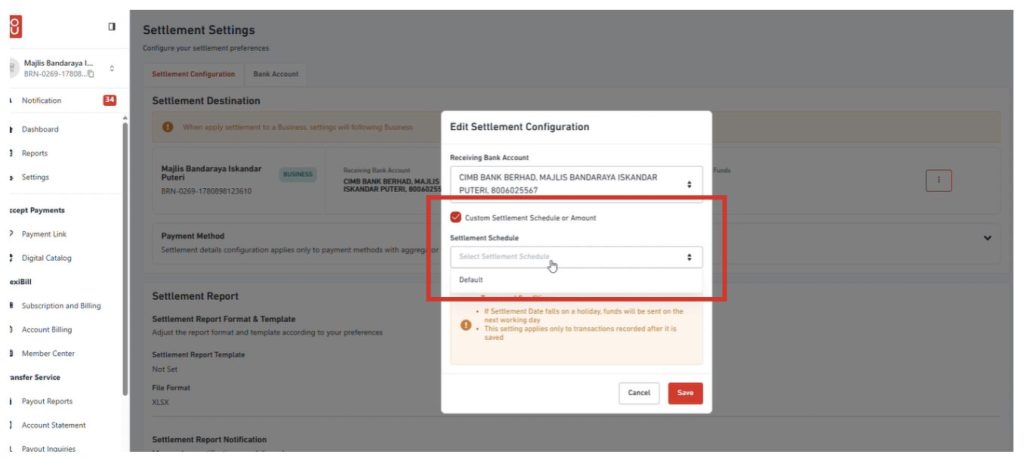
3. I have added a new settlement bank account. How can I change which bank account receives my settlements?
You can update your preferred settlement bank account by navigating to:
Settings → Settlement → Settlement Configuration → Settlement Destination → Click the three-dot menu (⋮) → Edit Settlement Configuration
Note: Leave Custom Settlement Schedule or Amount enabled and keep the Settlement Schedule set to Default.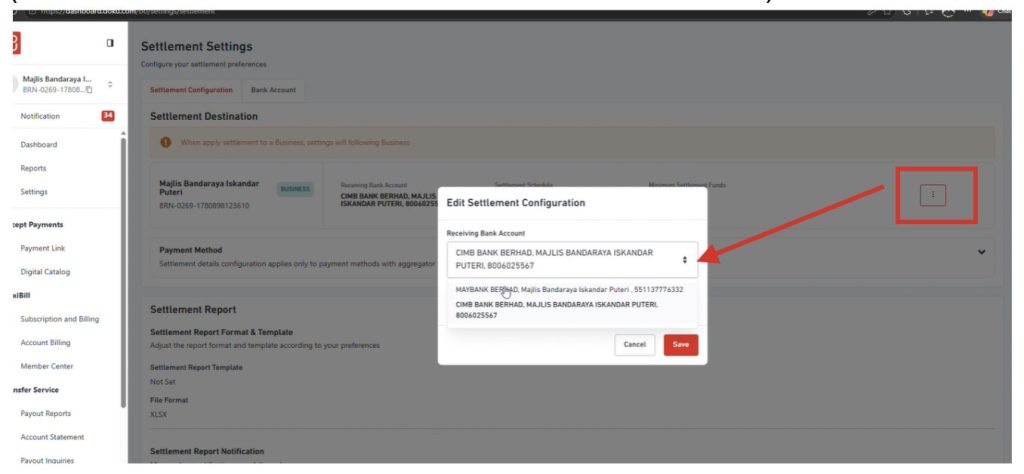
1. Why does my new or updated product need approval before it appears in my Digital Catalog?
As part of our security and compliance measures, all newly created or updated products must go through a review and approval process before they are published.
The approval process is typically completed within 1 working day.
2. How many product variants can I create for an item?
Each product supports up to 2 main variant types, such as Colour and Size. Within each variant type, you can create multiple options (e.g. Colour: Red, Blue, Black; Size: S, M, L, XL), allowing customers to choose their preferred combination.
3. What is the minimum payment amount for Digital Catalog?
The minimum payment amount is RM2.00.
4. Why can’t I select the postal code field?
The postal code field must be entered manually. Simply type in the postcode (e.g. 52100) instead of selecting it.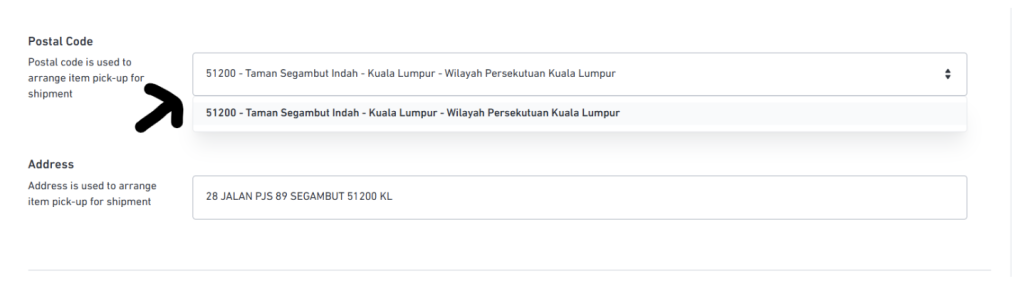
5. Can I add a product code or order number to my Digital Catalog items?
No. Product codes or order numbers are currently not supported in Digital Catalog. This feature is only available when creating Payment Links.
6. Can I add delivery charges to my Digital Catalog?
Yes. You can configure delivery charges by navigating to:
Digital Catalog → Settings (⋮) → Delivery Rules
7. Can I add custom fields to my Digital Catalog products?
Yes. When creating or editing a product, click Add Custom Field to include additional information.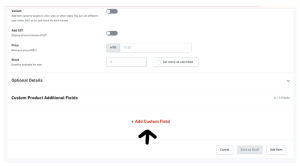
You can add up to 3 custom fields per product.
For detailed instructions, please refer to this guide.
8. Can I manage my product stock in Digital Catalog?
Yes. When creating or editing a product, you can set the available stock quantity or select Unlimited if you do not wish to track inventory.
9. Where can I view my products or add new products?
Navigate to Menu → Digital Catalog to view your existing products or add new ones.
10. Can I remove the Order Type field?
No. The Order Type field is mandatory and cannot be removed at this time.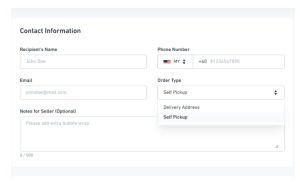
1. How can I integrate my website using the DOKU Manual API?
You can refer to the DOKU Manual API Guide here for step-by-step integration instructions.
2. How can I update my Callback URL or Return URL?
For Callback URL, you can update it directly in your DOKU dashboard by navigating to:
Settings → Webhook → Create Webhook
For Return URL, please contact our Customer Support team at [email protected] or via WhatsApp: 017-8244534 to submit a request. The support team will assist in updating it on your behalf.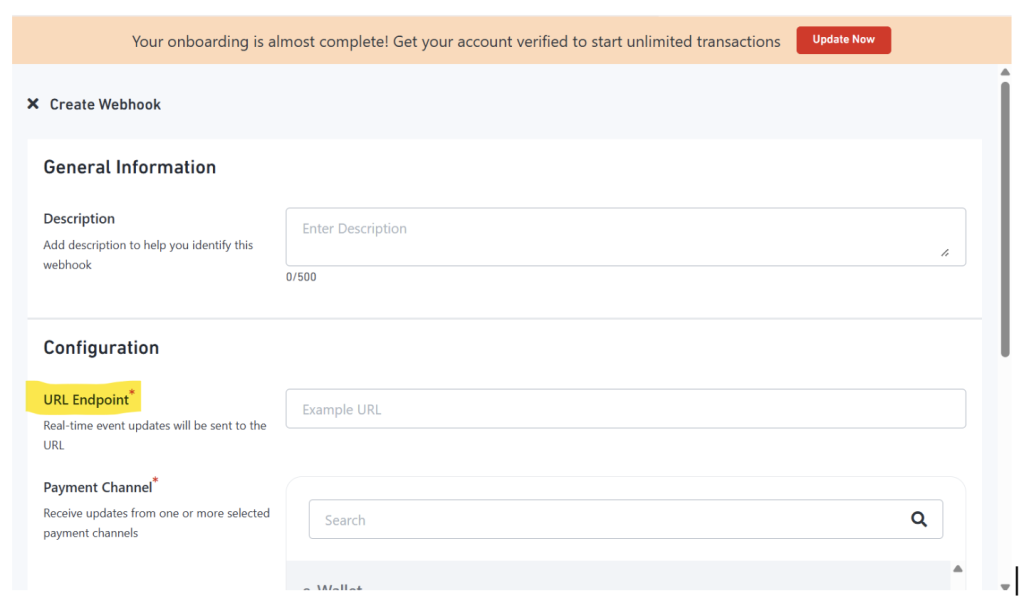
3. How can I integrate DOKU with my WooCommerce store?
You can refer to this guide for step-by-step instructions or watch the video tutorial.
4. How can I integrate DOKU with my Shopify store?
You can refer to this guide for step-by-step integration instructions.
1. What are the sandbox test credentials for Credit Card, FPX and eWallet payments?
You may use the following test credentials in the sandbox environment:
Credit Card
Card Number: 5120910000000012
Expiry Date: Enter any valid future date in MM/YY format.
CVV: 100
FPX & eWallet
Proceed with the payment flow until the final step. You can then choose to simulate either a Successful or Failed transaction for testing purposes.
Whether you’re creating a new subscription or managing recurring billings, our FlexiBill guides will walk you through each step. Visit our guide below to get started:
https://guide.senangpay.com/managing-recurring-payments-flexibill